Hi - I’d like to create an FAQ page for my site where you see a compact list of questions, each of which has a ‘+’ sign next to it to disclose the answer to that question, which appears below the question pushing the list of questions below it further down the page. The ‘+’ changes to a ‘–’ which obviously is used to hide the answer again, bringing the list of questions below back up again.
No JS needed! You want to use a details tag for this, which makes this whole thing completely vanilla HTML. Unfortunately, I don’t see that tag available in the graphical interface of Xway. But I will put in a request that they add it! (You can probably add the element using the markup tool, but you’ll also need to style your own HTML if you do that, since you have to apply the styles to the tags, and markup items can’t accept those directly.
Here’s what the HTML would look like:
<details>
  <summary>
    Topic one
  </summary>
  <p>Some text here to explain it...</p>
</details>
You add a separate details tag for each summary/detail pairing. If you add a name attribute to the details tag, and make all of the details in a logical group have the same name, they will become automatically exclusive. Open one, and the first one you had open will close. Otherwise (with either no name or unique names for each) they can operate independently.
Back in the Olden Times, I made several Freeway Actions for building these styled FAQ lists, with loads of JS needed… The browsers are so much more capable these days!
Wow I did not know about that tag… I will give it a go although obviously it will require some hack work to create formatted Q’s and A’s on a dummy page in Xway, then manually edit the resultant HTML (with Styles) to add the tags, then pull it back into Xway as markup on a new (to be published) page.
Is
widely supported in browsers or is it a relatively new thing?
We logged this a while back, so it is in our radar. But it doesn’t hurt to remind us - as you have now done.
It should be simpler than that. If these are basic styles (e.g. general style of text) you can add them to a box that contains the markup item. If you want to create default styles for the detail and summary elements, you can add these in the CSS Markup section of the Page Inspector. For example, the following markup will cause the details element to be red and the summary element to be blue.
details { color:red }
summary { color:blue }
You can also copy CSS style definitions from Xway’s HTML view. So if you want a particular set of style definitions (color, font-size, font-family etc.) you could define these in a temporary Xway document for some other element (perhaps using Default Styles in the Page Inspector) and copy them from Xway’s HTML view.
I think Walter’s point is that Details/Summary creates an accordion effect automatically, so if you want a summary with further details, this is a good choice.
There are often multiple ways of creating the same appearance in HTML / CSS. One rule of thumb is that it’s better to use a semantic (HTML) element when this is appropriate. E.g. use heading1 etc. for headings rather than styling paragraphs with large fonts. Or use emphasized text rather than italic-styled text when you’re using italics for emphasis.
I haven’t looked into the details of Xway’s Component system in a very long time, but is it possible that one of those could be used to wedge the actual details tag into place? Or are they more like the official WebComponent where they express a made-up tag and the browser follows the component’s internal logic to render it?
Xway components aren’t related to WebComponents. They’re bundles of HTML, CSS, JavaScript, and other resources which we currently use for Exhibeo galleries, but which can be used for other purposes. It’s possible to create them manually or write a program to do this, and there is a section in the Xway User Guide which describes their format (“Component format” at the end of the “Components” chapter).
Thanks Jeremy. Would that approach mean though that I would have to create individual markup items to open and close every single details and summary tag in my FAQ page? Also would XWay correctly render these tags when switching to web preview mode? Thanks.
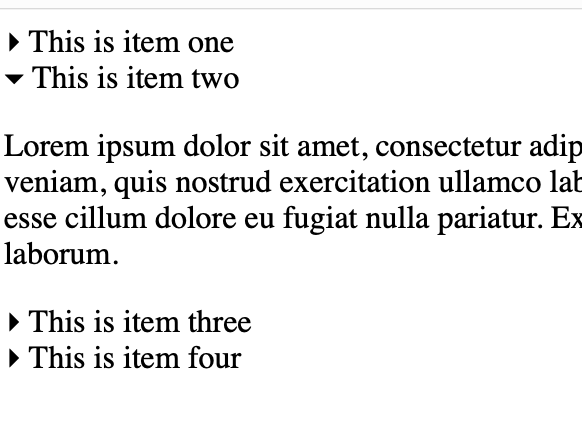
This contains a container box whose ID is set to faq, and (within that container box) a markup item called markup1.
markup1 contains HTML markup for four details elements, but no CSS. I also added a name="topics" parameter to get the behaviour Walter mentioned earlier: opening a details element closes other elements that have the same name.
The faq container box (which holds the markup item) has some styles applied to it. If you look in the Text section of the Box Inspector you will see that Font is set to Helvetica and Size is set to large. Other styles that you might want to apply to (all) text within the markup item can be set in the same way.
The Default Styles section of the Box Inspector has a default style applied to paragraphs. This sets Text Color to Grey - so any paragraph that is within the faq container will have grey text. Because this applies to paragraphs, it doesn’t affect text that is in the summary elements.
Finally I added the following CSS markup to the CSS Markup section of the Page Inspector: #faq summary { font-size: 1.2em; margin-top: 1em }. What this says is that any summary element that is within the faq container should have a font size of 1.2em and a top margin of 1em (so the summary text is a bit larger than other text, and there is some space before each summary).
This is just an example, so you can alter it to suit your own requirements. It’s based on the principle of CSS inheritance, which says that styles that are applied to a parent element (faq in this case) are (often) inherited by descendant elements (everything within faq). (Some styles are inherited while others aren’t: most text styles are inherited, and there’s usually a logical reason for why styles are inherited or not inherited.)
The tricky thing, in my experience, is adding styles in the CSS Markup section of the Page Inspector. You need to avoid mistakes or the styles won’t work: colons and semicolons are important, spelling is important etc.
Yes. Xway’s Web preview uses WebKit, which is what Safari uses, so pages should normally look the same as they would in Safari.
I tested out the details tag for my INFO page and it works beautifully with text and links entered in html in the markup. Thanks for the sample document as that helped it make total sense to me. I have a question: Is it possible to change the triangle icon that expands the list to another shape or character?
I don’t think that’s currently possible, although it might be possible in future. Here’s an article that contains some information on styling the details element:
 Thanks.